
Supabase is fantastic until you are paying for it like a B2B platform.
Self-hosting is not free: you take on ops responsibility. But if you have stable usage and you want predictable cost, a VPS Supabase can make sense.
This guide shows a production-minded setup: HTTPS, persistent storage, and the things people forget (backups).
What you will have at the end
- Supabase running on your VPS
- a domain with HTTPS
- a folder layout you can back up
- a repeatable way to update the stack
Step 1: Prepare the server
sudo apt update && sudo apt upgrade -y
Install Docker if needed:
curl -fsSL https://get.docker.com | sh
sudo usermod -aG docker $USER
newgrp docker
Step 2: Create a clean directory layout
mkdir -p ~/apps/supabase
cd ~/apps/supabase
mkdir -p volumes env
The goal is simple: your data and your config must be easy to find and back up.
Step 3: Create environment variables
Create env/supabase.env:
SITE_URL=https://supabase.your-domain.com
JWT_SECRET=change-me
ANON_KEY=change-me
SERVICE_ROLE_KEY=change-me
In practice you will generate proper secrets. Do not reuse example secrets.
Step 4: Use Docker Compose (your deployment primitive)
Supabase has multiple services. Docker Compose is the clean way to keep it manageable.
Create docker-compose.yml:
services:
  traefik:
    image: traefik:v2.11
    command:
      - --providers.docker=true
      - --providers.docker.exposedbydefault=false
      - --entrypoints.web.address=:80
      - --entrypoints.websecure.address=:443
      - --certificatesresolvers.letsencrypt.acme.tlschallenge=true
      - [email protected]
      - --certificatesresolvers.letsencrypt.acme.storage=/letsencrypt/acme.json
    ports:
      - 80:80
      - 443:443
    volumes:
      - /var/run/docker.sock:/var/run/docker.sock:ro
      - letsencrypt:/letsencrypt
    restart: unless-stopped

  supabase:
    image: supabase/supabase:latest
    env_file:
      - env/supabase.env
    labels:
      - traefik.enable=true
      - traefik.http.routers.supabase.rule=Host(`supabase.your-domain.com`)
      - traefik.http.routers.supabase.entrypoints=websecure
      - traefik.http.routers.supabase.tls=true
      - traefik.http.routers.supabase.tls.certresolver=letsencrypt
      - traefik.http.services.supabase.loadbalancer.server.port=3000
    volumes:
      - ./volumes:/var/lib/supabase
    restart: unless-stopped

volumes:
  letsencrypt:
This is a simplified representation. For a real production install, you will run the individual Supabase services (Postgres, Kong, Auth, Realtime, Storage) explicitly. The point of this tutorial is to make the deployment shape clear and maintainable.
Step 5: Deploy and verify
docker compose up -d
docker compose ps
Check Traefik logs for TLS success:
docker logs -f $(docker ps --filter name=traefik -q)
Step 6: Backups (do not skip this)
If you self-host a database and you do not back it up, you are not self-hosting. You are gambling.
At minimum:
- nightly volume snapshot (provider feature)
- nightly logical database dump (if you run Postgres directly)
Example (when you have a db container):
docker exec -t db pg_dumpall -c -U postgres > ~/backups/supabase.sql
Troubleshooting
TLS fails
- DNS A record wrong
- ports 80/443 blocked
- Traefik cannot write
acme.json(volume permissions)
Everything works locally but not on the domain
- you routed the wrong hostname in Traefik labels
- you have multiple routers conflicting
Supabase feels slow
- your VPS is under-sized
- your disk is slow (common on low-end instances)
- you need more RAM for Postgres caches
Internal links (recommended next reads)
- Comparison:
/alternatives/vercel - Tutorial:
/deploy/nextjs - ServerCompass template: https://servercompass.app/templates/supabase?utm_source=deploytovps&utm_medium=referral&utm_campaign=cta
Related in the StoicSoft network
If you're choosing a VPS provider or benchmarking real-world performance like the post above explores, StoicVPS is the StoicSoft network's independent tracker for VPS pricing, performance, and migration safety.
From across the StoicSoft network
Hand-curated reads on the same topic from sister sites in the StoicSoft family.
 Deploy Handbook
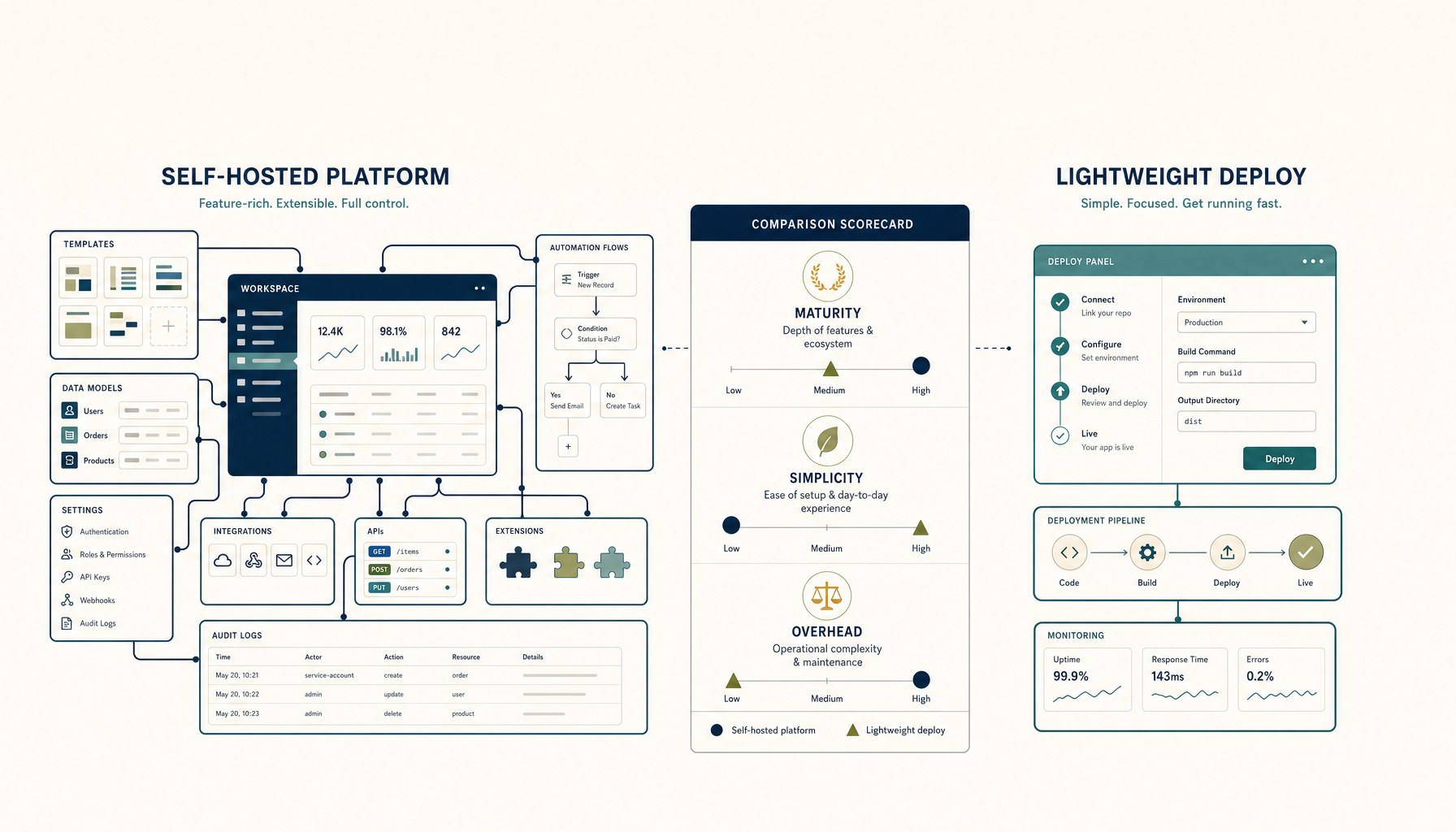
Coolify vs Dokploy: Self-Hosted PaaS Comparison
Both let you run your own Heroku. Which one should you pick for your VPS?
Read on deployhandbook.com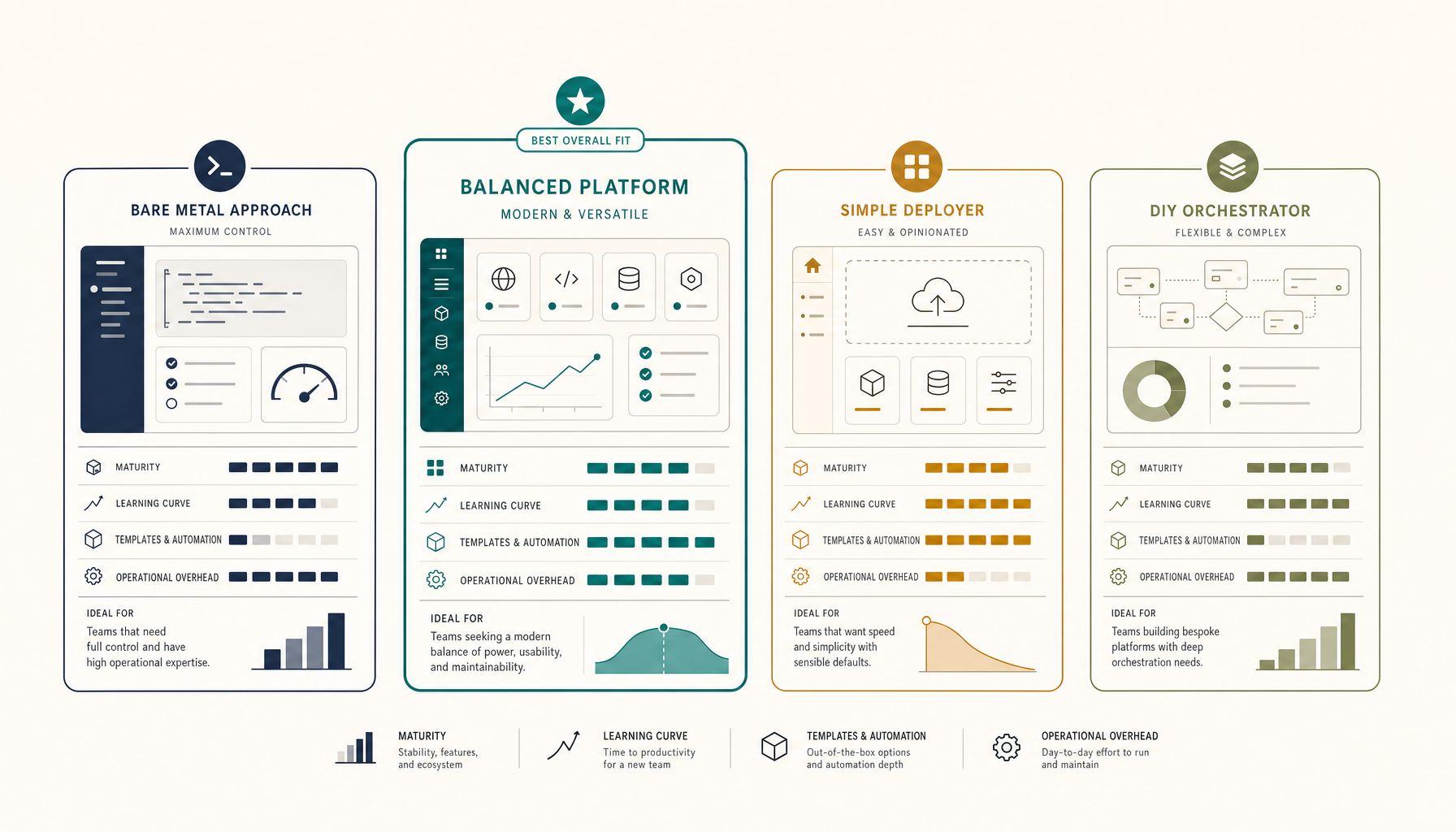 Deploy Handbook
Best Self-Hosted PaaS (2026): Coolify, Dokploy, CapRover, ServerCompass
A practical comparison of self-hosted PaaS options. Run your own Heroku alternative on a VPS for a fraction of the cost.
Read on deployhandbook.com